
Apple's 'Golden' iOS 26 Feature Deciphers KPop Demon Hunter Lyrics
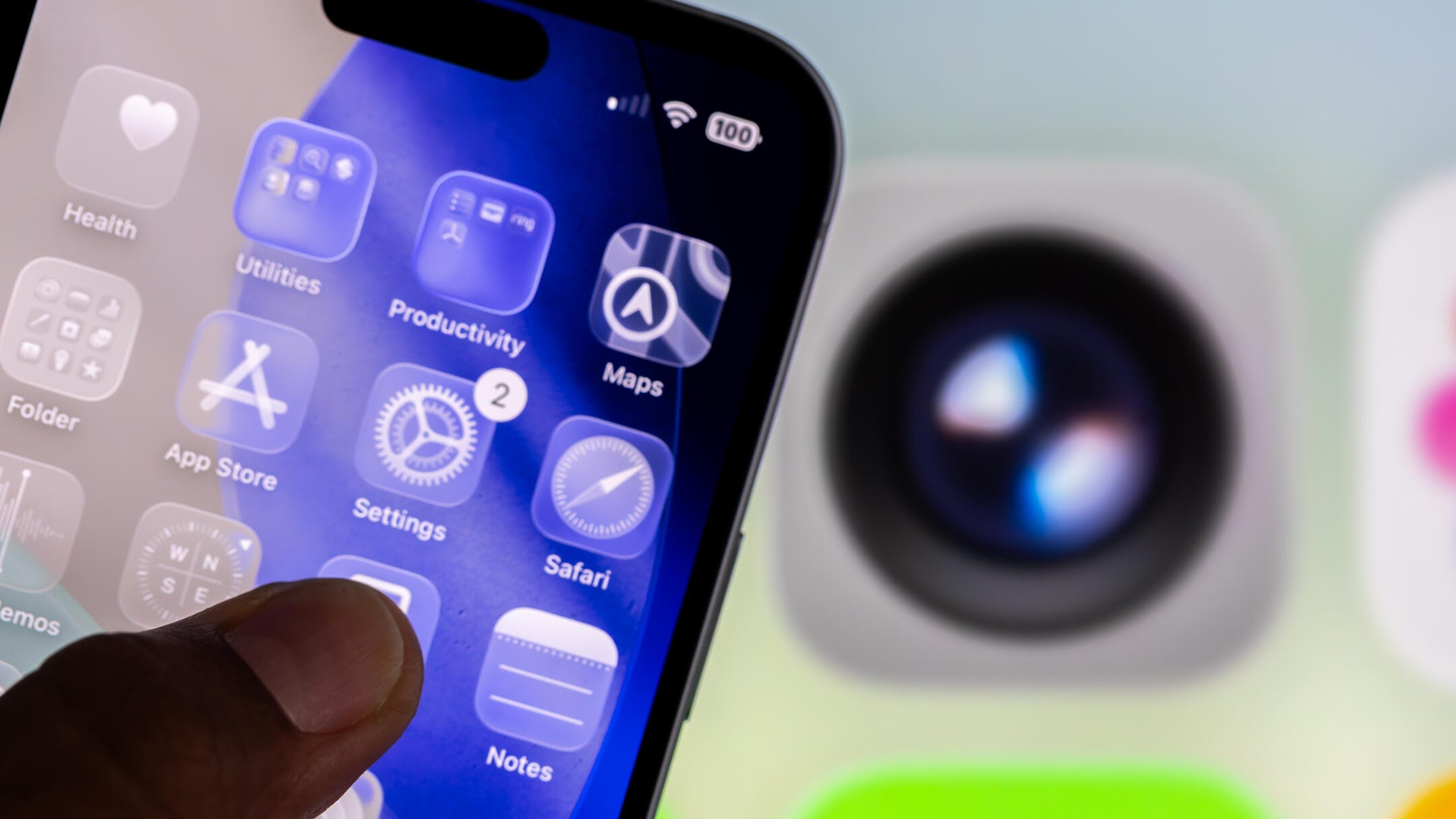
New Features in Apple Music with iOS 26 Beta
The latest public beta of iOS 26 introduces several new features to Apple Music, including a new crossfading feature called AutoMix and a karaoke mode. The sixth public beta also brought additional features such as the ability to screen incoming calls and new ringtones for iPhones used by developers and beta testers.
Apple Music has grown significantly since its launch a decade ago, becoming one of the largest music streaming platforms. According to Statista, Apple Music had approximately 94 million paid subscribers as of June 2024. However, Spotify remains ahead in terms of paid subscribers, with around 276 million. This means Apple still has work to do to close the gap in the music streaming market.
After testing the new features in Apple Music during the iOS 26 beta, it’s clear that some are promising but limited in availability. These features may not be enough to attract users away from competitors like Spotify.
It's important to note that Apple is still beta testing iOS 26. This means the update might have bugs and could affect battery life. It's advisable to avoid installing the beta on your primary device. If you're interested in trying the beta, consider using a secondary device instead.
Apple may also adjust these features before the final release of iOS 26 this fall. Based on current trends, the final version is expected to come out the week after the recent Apple event.
AutoMix: A Seamless Crossfade Feature
AutoMix is an upgraded crossfade feature that blends one song into the next. It attempts to time stretch and match the beats of songs to create a more seamless transition. However, the success of this feature depends heavily on the songs being played. In some cases, the transitions didn’t sound natural.
For instance, transitioning from "Running Up That Hill" by Kate Bush to "Happier" by Marshmallow and Bastille was an odd mix. While AutoMix worked better with pop and rap songs, it didn't always sound right. The feature stretched and warped beats to match the upcoming song, which sometimes made it seem like there was an issue with the track.
AutoMix was enabled automatically after downloading the iOS 26 beta, but users can disable it easily. To turn off AutoMix:
- Tap Apple Music.
- Start playing music.
- Tap the song across the bottom of your screen.
- Tap the symbol that looks like three dots and dashes in the bottom right corner of your screen.
- Tap the AutoMix symbol — it looks like a Venn diagram — near the top right corner of your screen to enable or disable the feature.
Lyric Translation and Pronunciation
With iOS 26, Apple Music now offers lyric translation and pronunciation guides. This is particularly useful for fans of K-pop or other non-English music who want to understand the lyrics.
To access these features:
- Tap Apple Music.
- Start playing music.
- Tap the song across the bottom of your screen.
- Tap the speech bubble with quotation marks inside it in the bottom left corner of your screen.
- Tap the symbol with two speech bubbles inside it.
This will bring up options for Show Pronunciation and Show Translation. Tapping Show Pronunciation adds phonetic guides under the lyrics, while Show Translation provides a translated version below each line. However, these features don't always work together, and some songs, like those by Babymetal, may not support them at all.
Pinning Playlists and Albums
iOS 26 allows users to pin playlists, albums, and more to the top of their library. This makes it easier to keep track of favorite content. To pin music:
- Go to your Library.
- Select a section like Playlists or Artists.
- Long press on the music you want to pin.
- Tap Pin [Section].
This will move the selected music to the top of the section.
Playlist Folders
The Mac version of Apple Music lets users organize playlists into folders, and iOS 26 brings this capability to iPhones. To create a folder:
- Tap the plus (+) sign in the top right corner of the Playlists section.
- Tap Create New Folder.
- Name the folder and drag playlists into it.
Animated Lock Screen Artwork
When listening to Apple Music, some album artwork will animate on your lock screen. To view this, tap the album cover in the media player when a song is playing. Not all albums have animated artwork, but it adds a nice aesthetic touch.
New Home Screen Widgets
iOS 26 introduces new Apple Music home screen widgets, including medium- and large-size widgets for pinned music and a large Live Radio widget.
Unique Features Worth Considering
If you’re not subscribed to Apple Music, the lyric translation and pronunciation features might be compelling. These features are unique and offer a way to engage with non-English music without learning a new language. However, they are currently limited in availability and supported languages.
Spotify already offers similar features like AutoMix and playlist folders, though creating folders is only possible on desktop or web. The slightly lower price of Apple Music ($11 a month compared to Spotify’s $12) might be a deciding factor for some users.
For more details on iOS 26, check out first impressions of the beta, how to enable call screening, and all the new features Apple plans to introduce later this year. You can also refer to the iOS 26 cheat sheet for a quick overview.

Post a Comment for "Apple's 'Golden' iOS 26 Feature Deciphers KPop Demon Hunter Lyrics"
Post a Comment